
Installation Guide
Step 1: Access the Source
Press the Source button on your Samsung remote to get started.
Step 2: Download IPTV Smarters Pro
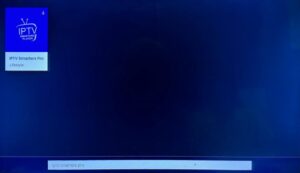
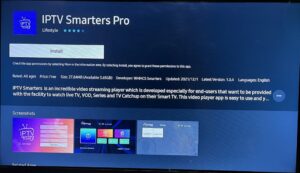
Navigate to Search and type in IPTV Smarters Pro to download the app.
Step 3: Log In to the App
Open the application and log in using your subscription details: Username, Password, and Portal URL.
Important Note:
Ensure that your service provider has their DNS registered with us for optimal performance. More Info
Please be aware: The Premium Version features are not available for Samsung Smart TVs.
IPTV Smarters is an incredible video streaming player which is developed especially for end-users that want to be provided with the facility to watch live TV, VOD, Series and TV Catchup on their Smart TV. This video player app is easy to use and yet highly efficient with a powerful player, attractive and very impressive layout and most importantly user-friendly.
Installation Guide
Step 1: Access the Home Menu
Press the Home button on your LG remote to begin.
Step 2: Open the LG Content Store
Navigate to the LG Content Store and open it.
Step 3: Download IPTV Smarters Pro
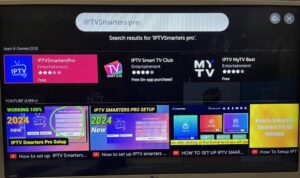
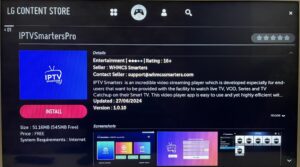
Select the Search button and type in IPTV Smarters Pro to download the app.
Step 4: Log In to the Application
Open the application and log in using your subscription details: Username, Password, and Portal URL.
Important Note:
Please ensure that your service provider has their DNS registered with us for optimal performance.More Info
Note: Premium version features are not available for LG Smart TVs
App installation Guide for Firestick
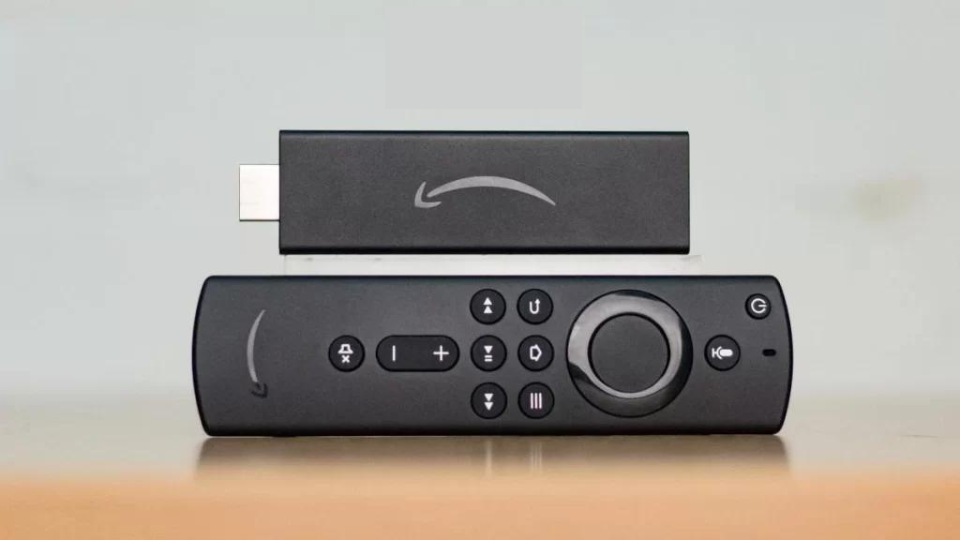
STEP 1:
We will first install the Downloader app
As the app downloads, you can take this time to prepare by ensuring your internet connection remains stable.
This app will help you sideload IPTV Smarter on FireStick (because browser downloads are not allowed)
STEP 2:
Once the download is complete, the installation process will begin automatically, bringing you one step closer to enjoying your IPTV content.
Following the installation, you can choose to open the app immediately or set it up later based on your convenience.
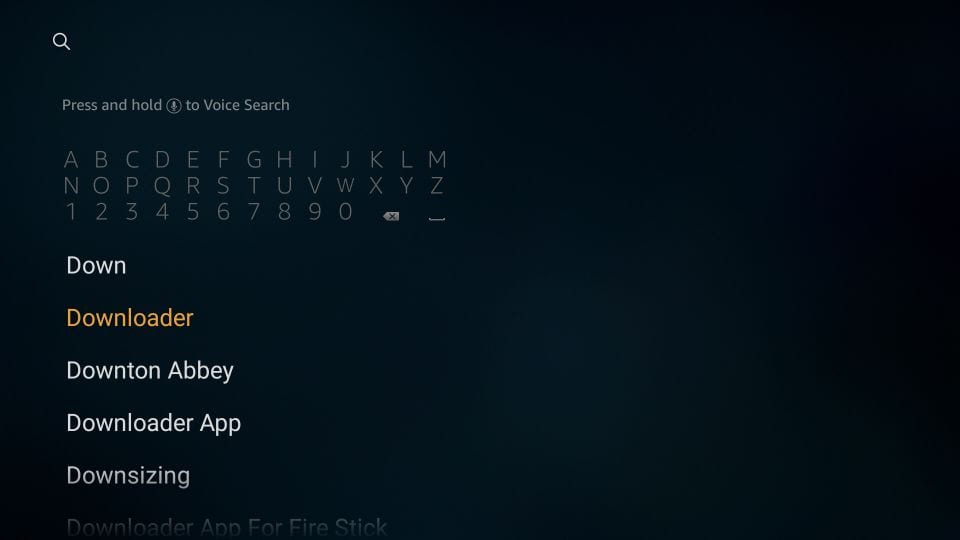
Highlight the Search option on the home screen of FireStick
Type the name of the app (which is Downloader)
Click the Downloader option when it is displayed in the search results
Choose the Downloader icon on the following screen and download and install the app
During this time, you can also check your device for any unnecessary files that can be removed to free up space.
The notification confirms that the app is successfully installed and ready for your use.
STEP 3:
This step is crucial for maintaining the efficiency of your FireStick, especially if storage is limited.
You may now open the Downloader app
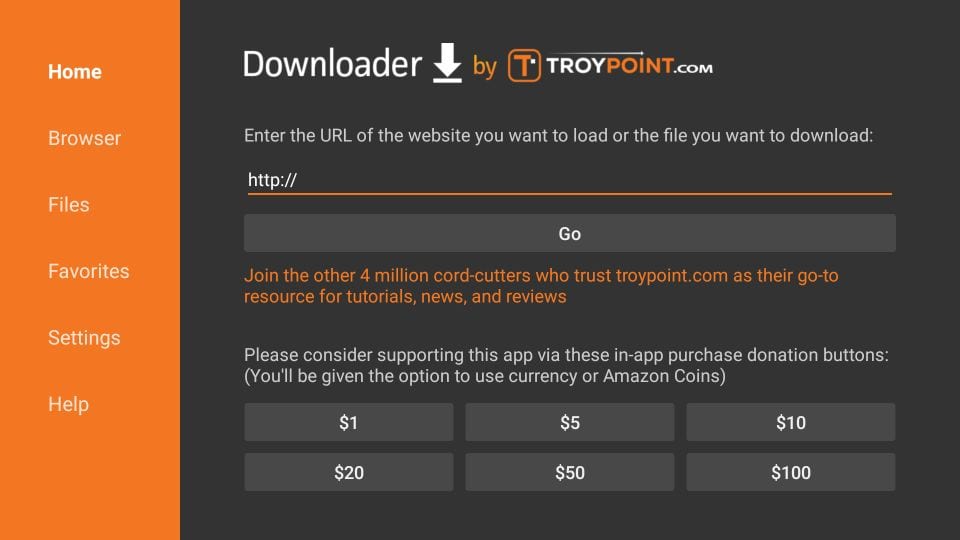
When you run this app for the first time, a set of prompts will appear. Dismiss them until you see the following screen
After deleting the APK file, you can feel satisfied that you have optimized your device’s performance.
At this stage, you are almost ready to enjoy the IPTV services offered by Tivi-live.
On this screen, you need to click the URL textbox on the right side (make sure the Home option in the left menu is selected) where it says ‘http://’
STEP 4:
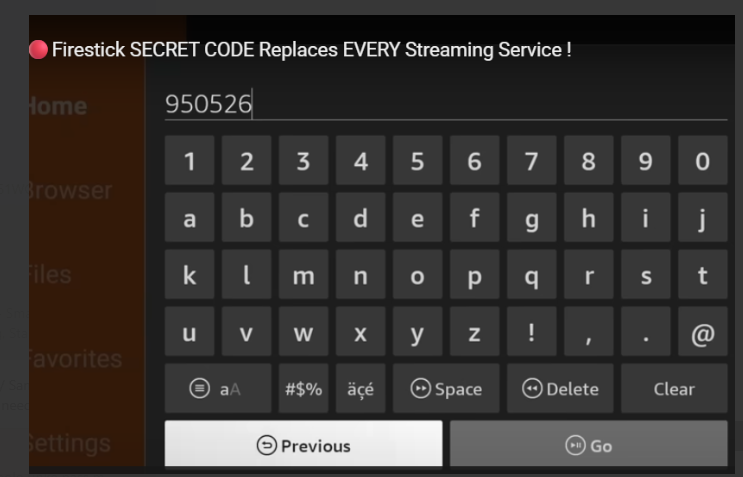
Go ahead and enter the following path on this window: http://aftv.news/1101454 and Type in Downloader Code: 1101454
Taking into account the uppercase and lowercase letters as they are.
The Terms of Use will familiarize you with the rules and guidelines of using the app, ensuring a smooth experience moving forward.
Click GO
STEP 5:
Give it a minute or two until the realstreamz app is downloaded onto your FireStick device
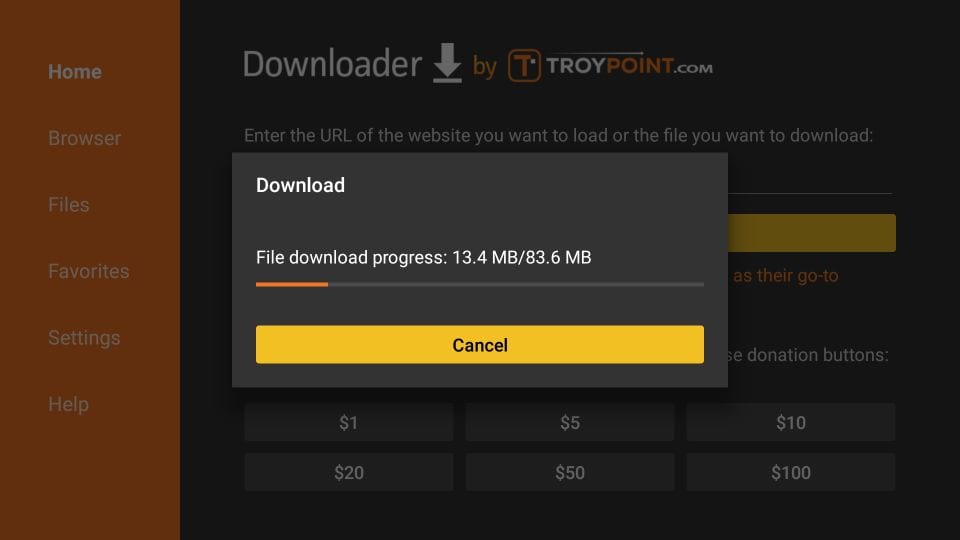
STEP 6:
When the download has completed, the Downloader app will run the APK file and the installation will start
Click Install
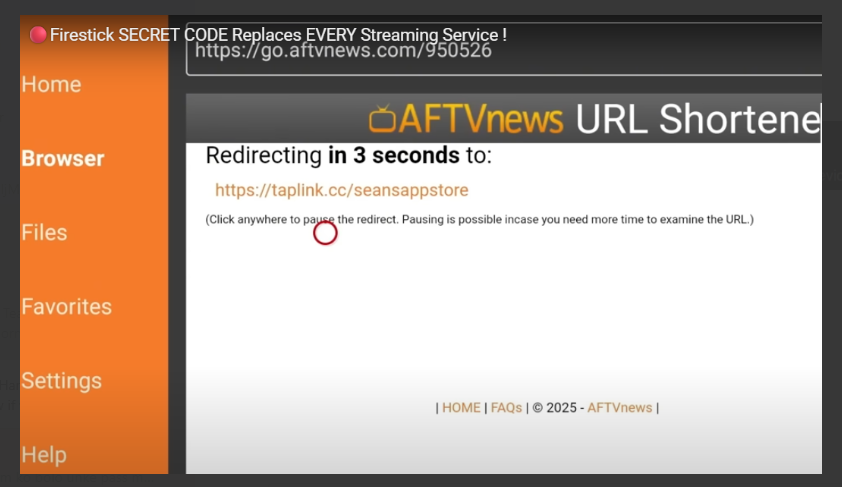
STEP 7:
Wait for the installation to finish
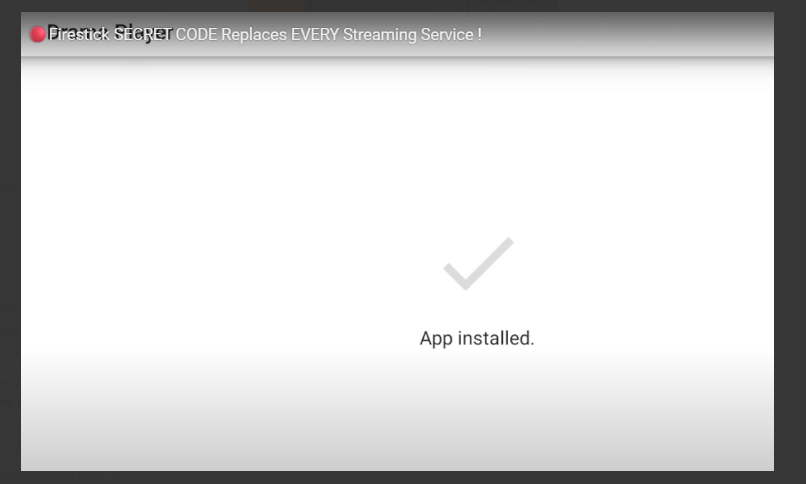
STEP 8:
Installation is concluded with the App installed notification
You may now choose to click OPEN and get started with app
I recommend choosing DONE so that you may first delete the APK file and save some space on the FireStick storage
STEP 9:
If you clicked DONE above, you will be back on the Downloader interface
Click Delete
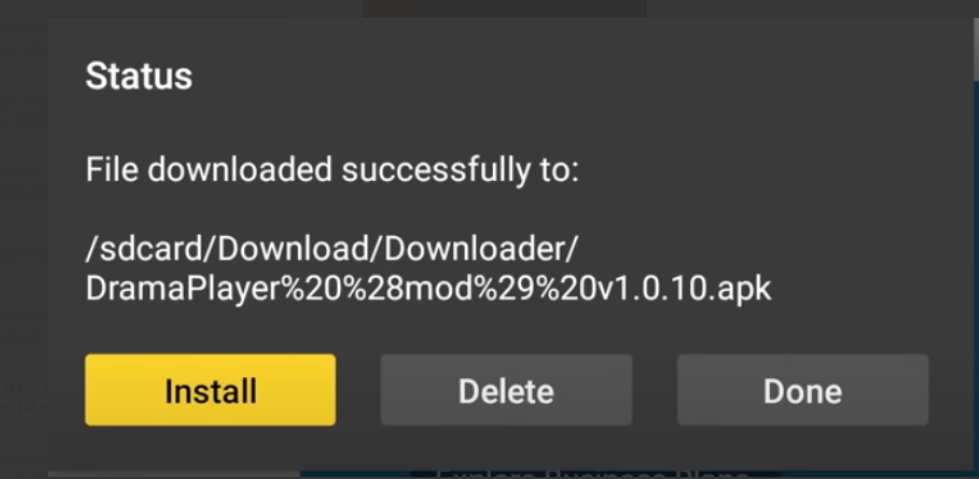
STEP 10:
Again, click Delete
Great! You now have the app on FireStick.
When you run the app for the first time, Terms of Use will be the first window. Scroll down and click Accept.